
¶ BitWarden
BitWarden is a cloud-based secure password manager for all devices. The application supports Logins, Card Info, and other types of credentials, so that you're able to securly store any important information, without the fear of someone having access to it (or the fear of losing it in the event that your device fails). Ditch the desktop sticky notes & the phone notes apps, and make sure you always have access to your passwords by using this!
Clarification: Your passwords are stored on my server, but I am unable to see them as they are encrypted before they are saved. This means that though I technically have them, I cannot decrypt them to view them, nor do I care to.
¶ What you need from me
To get started with BitWarden, the only thing you'll need to do is ask me for the bitwarden link. Obtain this, then you can get started by following the steps below.
¶ Creating A VaultWarden / BitWarden Account
-
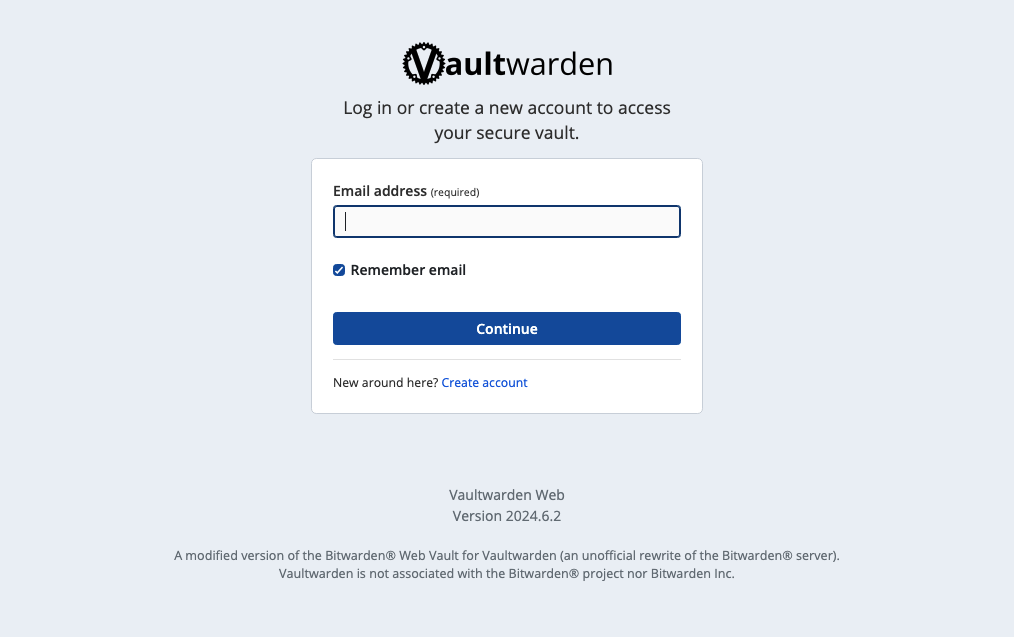
To get started with BitWarden, head over to the website by clicking on the bitwarden link that you obtained previously on your mobile device or computer. You'll be sent to a login page for VaultWarden, but don't worry, this is just the name of what runs under the hood for me to host BitWarden myself. You should see a page similar to the following:
-
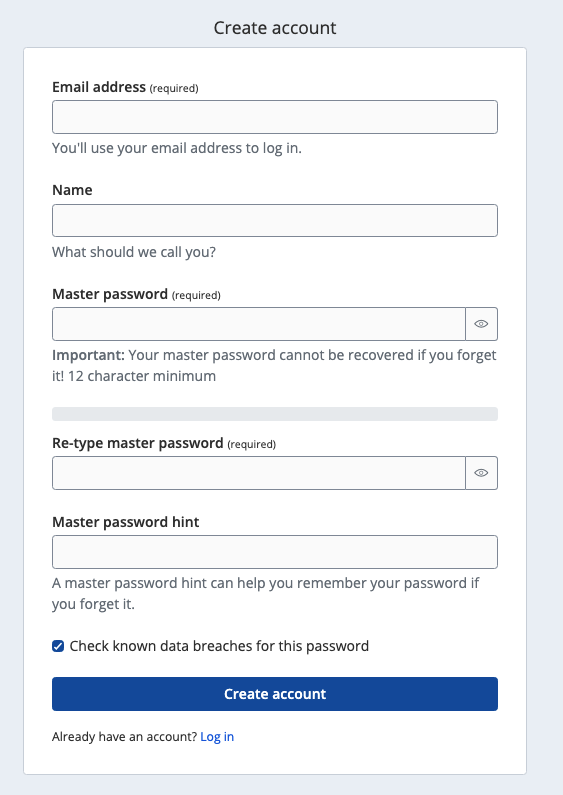
You'll want to click on the "Create Account" link under the continue button. This will bring you to the following page:
-
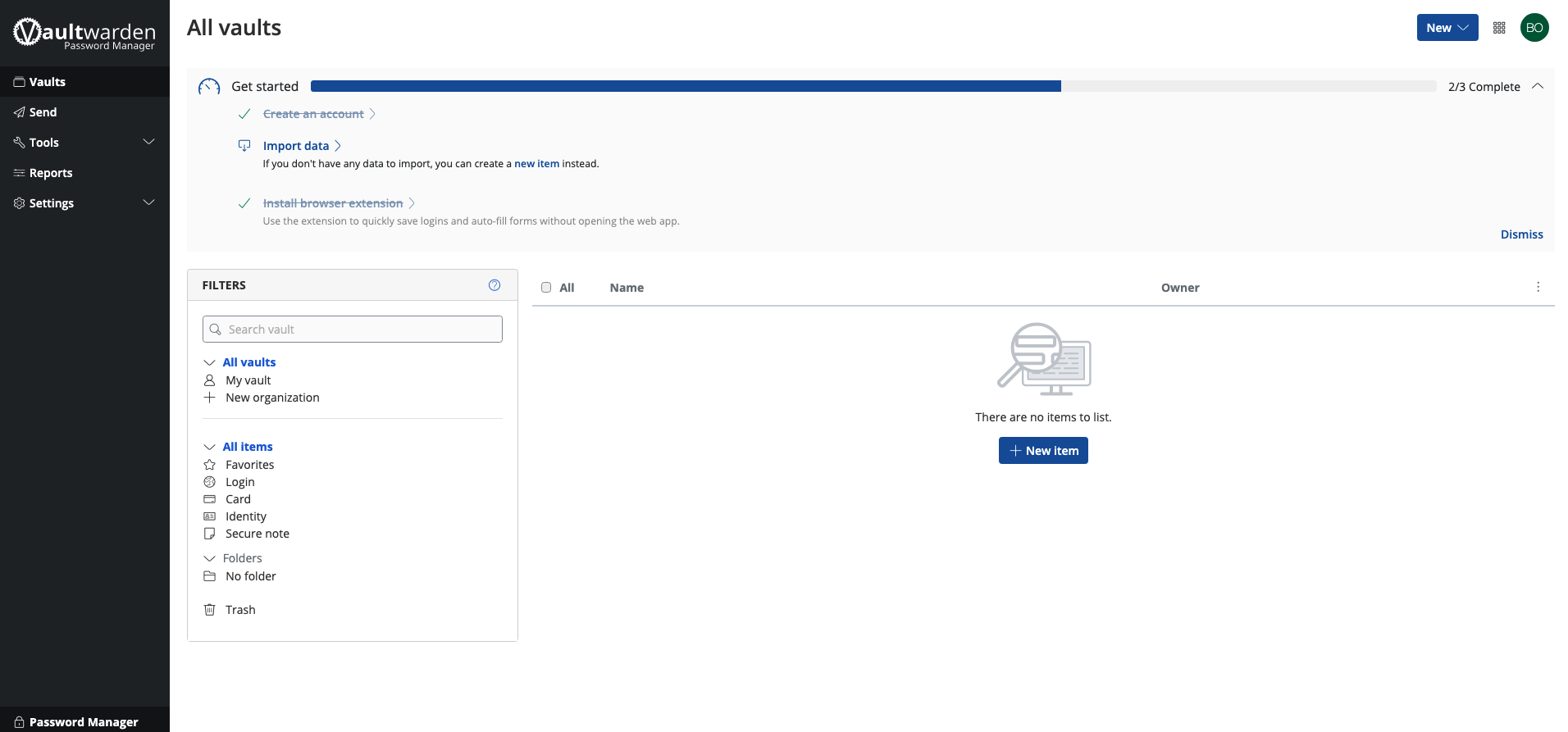
Go ahead and fill out the create account form, hit the create account button, and login to VaultWarden. You'll something similar to the screen below:
-
Welcome to the homepage of your VaultWarden account! As you add entries for credentials, you'll start to notice that the center list on the page begins to fill out and show you your stored entries.
-
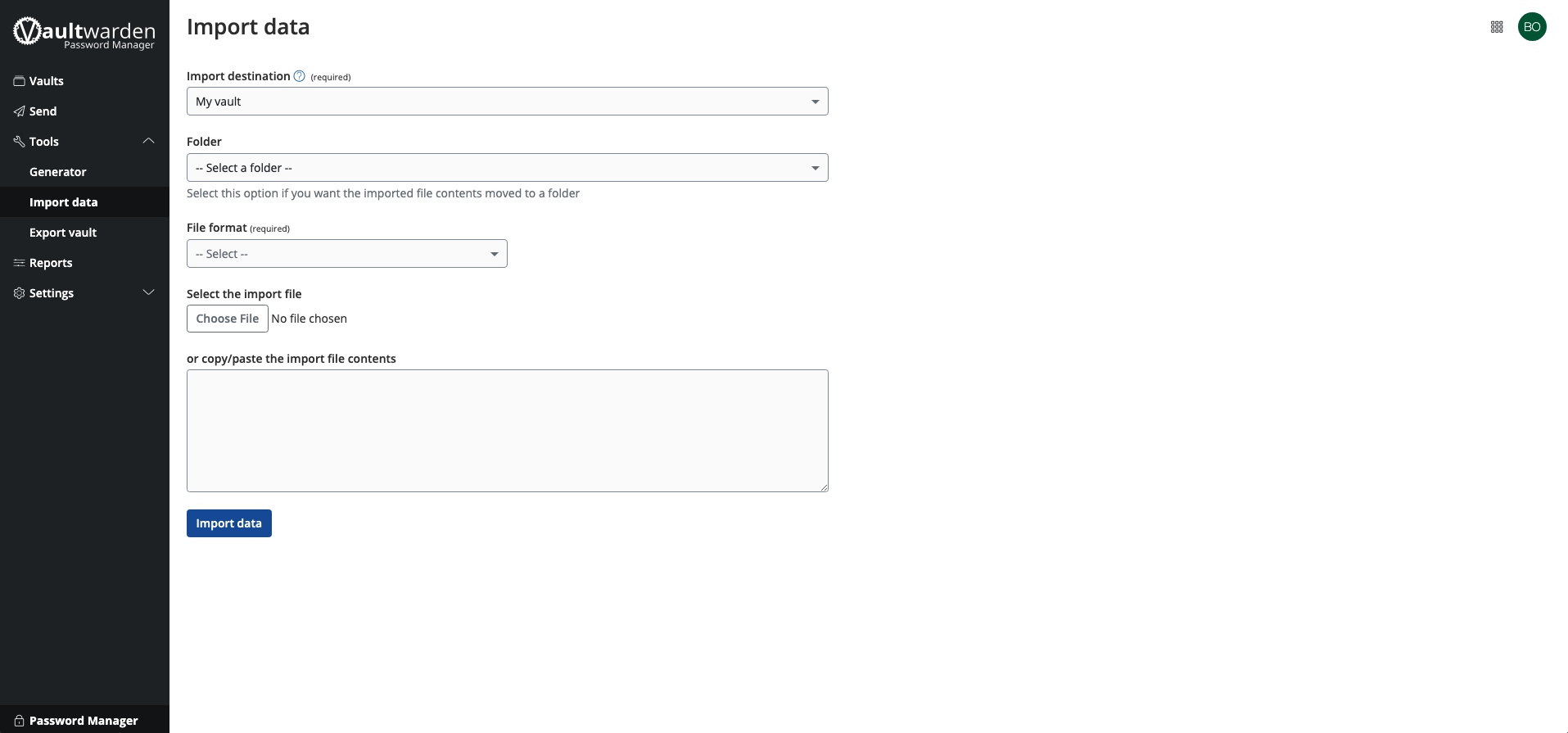
Note: If you are migrating from another password manager, you can use the "Import Data" link at the top of the page to import any passwords you had stored in another manager (so long as you use the file that you exported them to from your old password manager). Doing so will bring you to the following screen:
-
Here, you can import the file that you exported from your previous password manager, thereby bringing that stored information directly into your new BitWarden vault.
¶ What To Download
Let's be honest, nobody wants to have to go to the website, login, and dig through their stored credentials every single time they need a password. Lucky for you, BitWarden has Mobile & Desktop applications for this reason, along with (what I find to be the most convenient) browser extensions for this purpose.
I won't link everything, because by now you should probably know how to search for "bitwarden" on your phone's app store, but here is the link for the chrome extension just incase. You can download the app for any of the devices I mentioned above here on BitWarden's website.
¶ How to setup the applications
Now you're probably wondering, "Ok, I downloaded the stupid apps. Now what?". Follow the steps below, that's what!
-
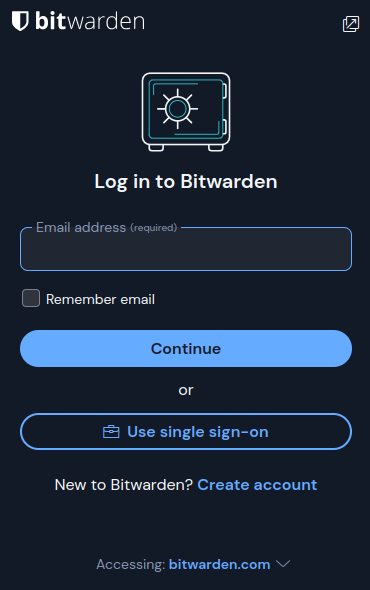
When you open any of the apps, you'll be greeted by something similar to the following image:
-
Here, you're gonna want to click the link at the bottom that says "Accessing: bitwarden.com", and from the list that pops up, select the option called "self hosted".
-
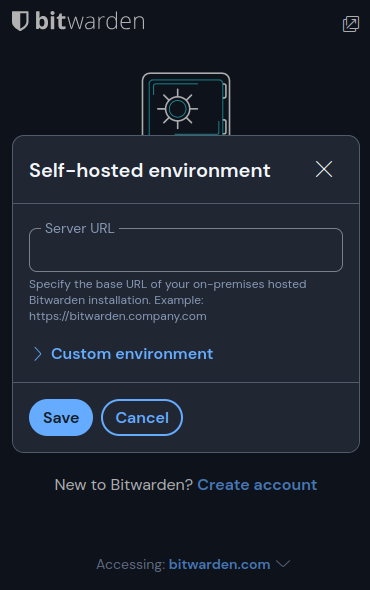
You should get a popup similar to the following prompting you to enter a server URL:
-
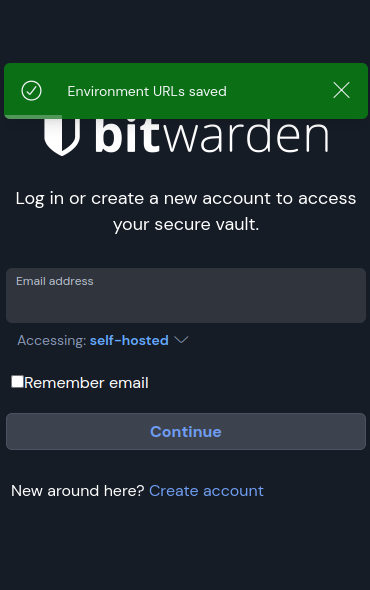
This is where you'll enter the BitWarden Link that you obtained from me earlier. Go ahead and throw that in, hit save, and you'll return to a page like this:
-
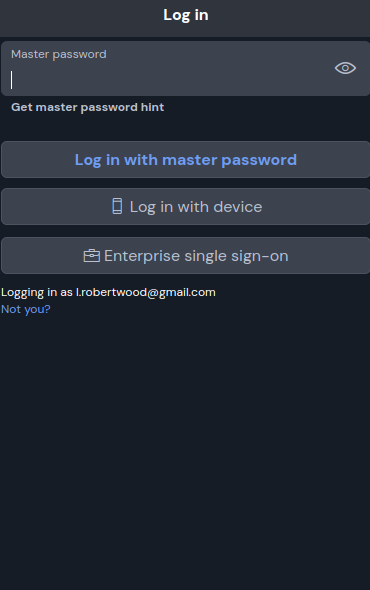
Go ahead and enter the email that you signed up with, click "remember email", and click continue. You'll be brought to this screen:
-
Here, enter the master password that you used at the time you created your account, then hit the "Log in with master password" button. Following this, you should see the screen below (unless you imported or created password entries already, in which case you'll see them instead of "Your vault is empty":
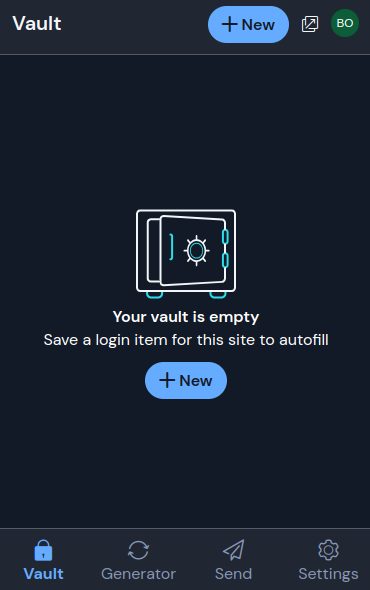
That's it! You can feel free to explore the customization settings and options that the BitWarden app allows the user to change.
¶ Hints
-
There is a setting that lets you change when your vault should lock, so you can set that to be unlocked forever if you like.
-
There is keyboard shortcut to autofill credentials for specified websites:
Ctrl + Shift + L
-
It is possible to use bitwarden to save your passkeys for easier two-factor authentication on the user's end. Poke around!