
¶ Nextcloud
Nextcloud is a self-hosted cloud storage service that has the convenience and security of iCloud and Google Drive, but not at the cost of your data. The application can be used to create and store files, backup your computer, or anything of that sort. This is moreso meant to be used as an alternative to external hard drives/USB devices that could fail out randomly. If you have anything important you want to make sure you never lose, you can use your Nextcloud account and store a copy of it on the server. That way, in the event that you lose the file, you'll be able to access/recover it from your Nextcloud dashboard.
Disclaimer: Though your data is thereby store on my server, it does not mean that I am able to access it -- nor do I care to.
¶ What you need from me
To get started using Nextcloud, you'll need the following pieces of info:
- Nextcloud Link
- Nextcloud Username
- Nextcloud Password
To get this information, reach out to me by whatever means you like and ask me to set a Nextcloud account up for you -- I don't mind. I'll get these credentials to you once your account is setup, but be patient.
¶ What to Download
¶ Desktop
Nextcloud has a desktop application, but I personally find it to be intimidating and prefer to just open my browser, go to the Nextcloud link (which you obtained from me previously), and upload/download any of my files from the browser instead.
¶ Mobile
Nextcloud also has a mobile application, so feel free to try and set it up yourself if you want. I don't use it, seeing as I don't necessarily need to backup most files / photos from my phone, so use it with caution if you do (it may upload everything on first use)!
¶ How to use Nextcloud
-
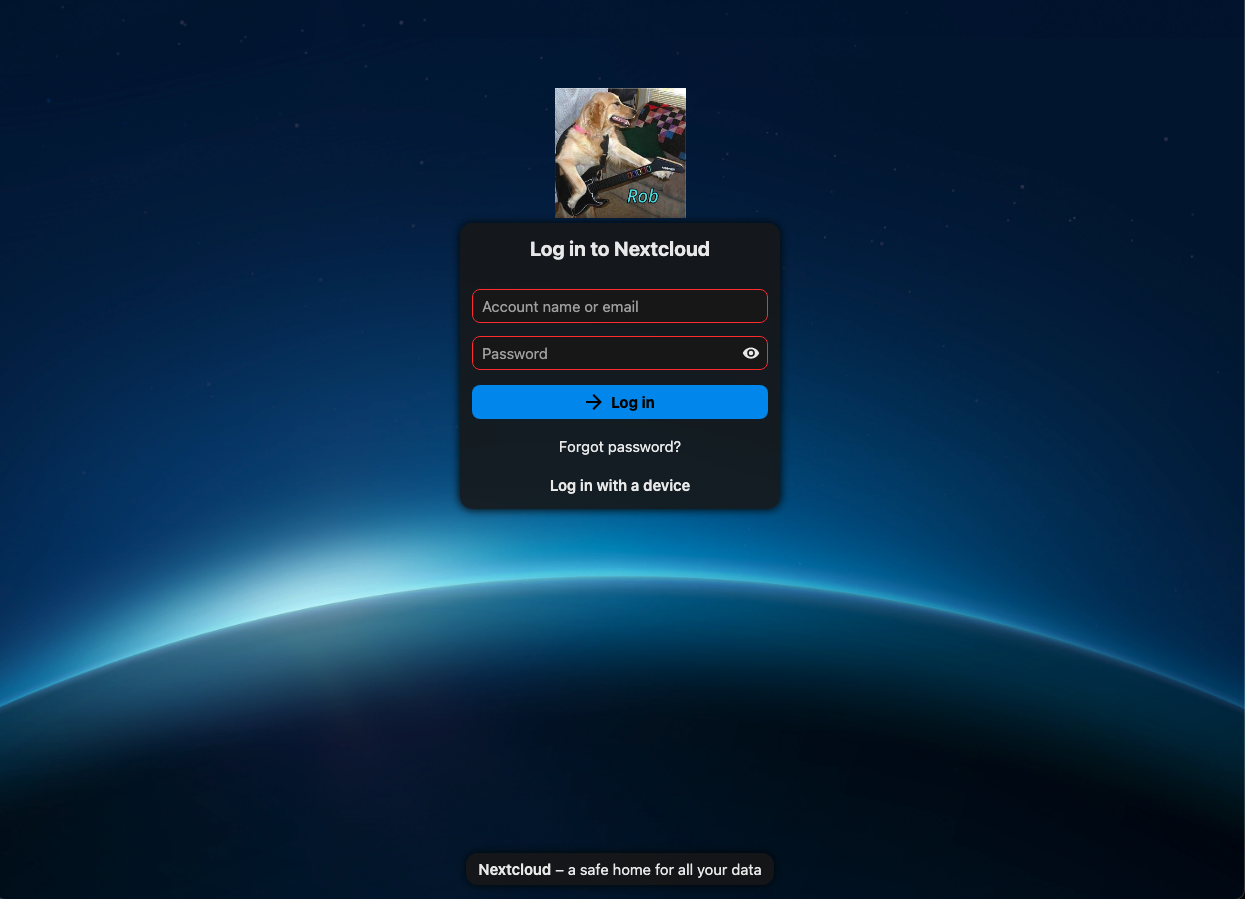
To start, open your browser on your computer and go to the Nextcloud link that you previously obtained from me. You'll be greeted by the following page:
-
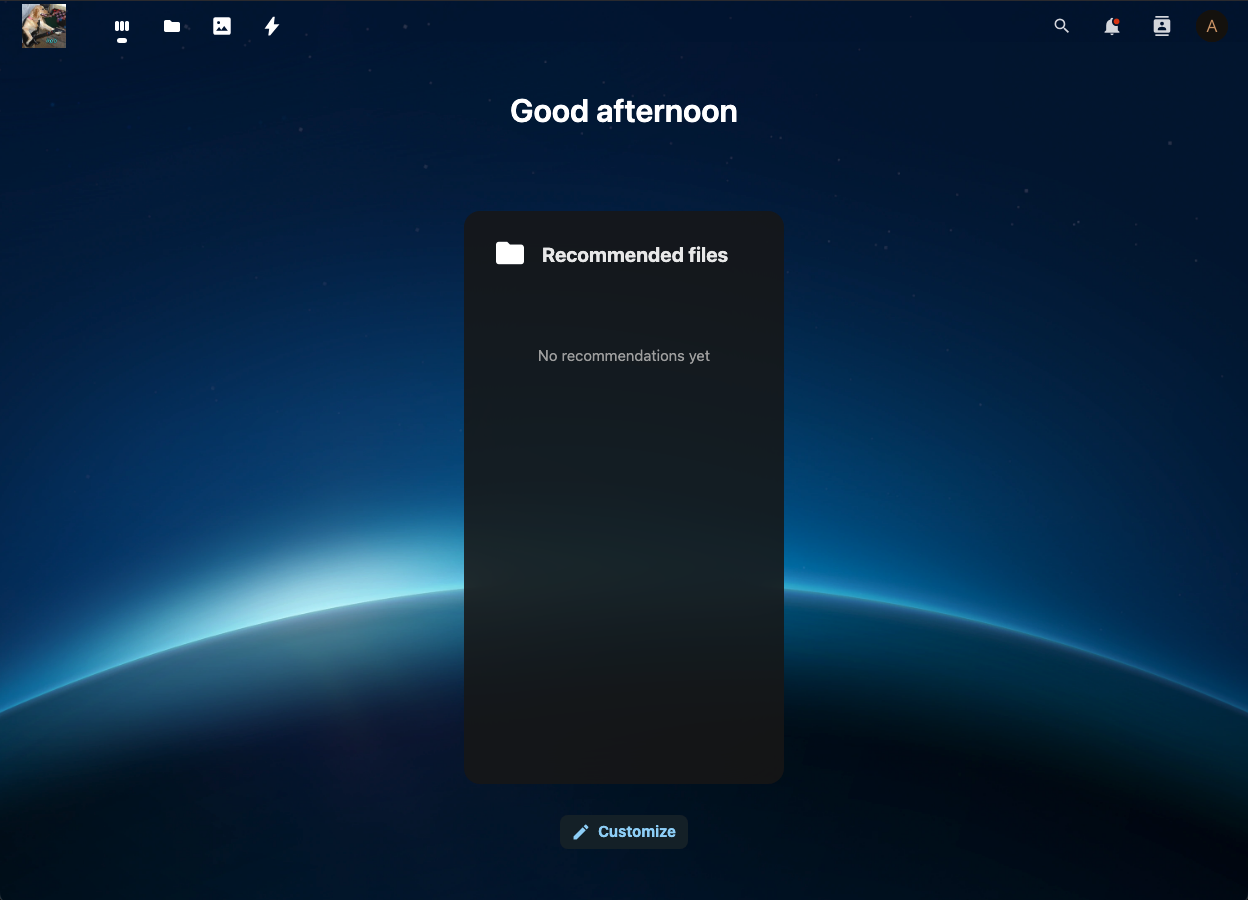
Once here, login with the username and password I gave you when you got the link. You'll be greeted by a screen similar to the following:
- Note: If you hit login and it is taking long, refresh the page.
-
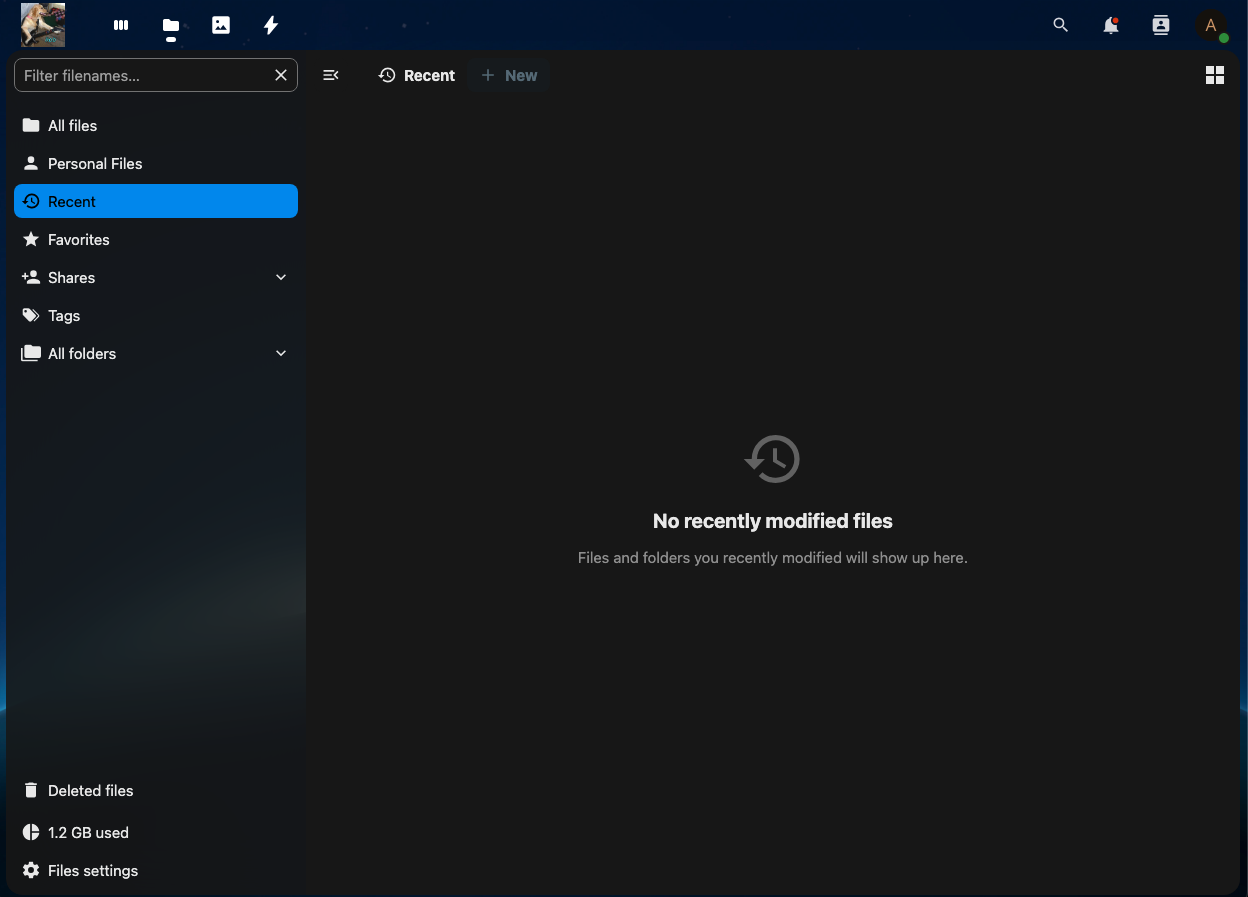
This page is your dashboard, you won't spend too much time here. In the top navigation bar, go ahead and click the folder icon to view your uploaded / upload new files. Doing so will bring you to the "Files" page below:
-
This is where all of your files are available to download. Click on the "All Files" button on the left sidebar to view all of your files. Then, you'll have the option to "Upload a file" or "Upload a folder".
-
From here on, the application is pretty intuitive. It's just like a file explorer on your computer, so poke around and see what's available to you!